BroGlow: setup and operation
BroGlow sends local agent session status to ESP32-C3 SuperMini lamps over USB or, on macOS, over Bluetooth LE. One Mac can drive several lamps. A lamp needs only USB power; it does not use Wi-Fi. Run source commands from the root of the source checkout and package commands from the extracted package folder. The enclosure is a separate print package.
Choose a setup path
| Task | Start here |
|---|---|
| Install with Homebrew | Homebrew install, then the required broglow install (registers BroGlow's hooks in your coding agents) |
| Ask Codex or another agent to do the setup | Agent runbook |
| Install without compiling Rust | Install a prebuilt package |
| Build on your own Mac | Build from source |
| Connect an already flashed lamp | USB-assisted setup |
| Find the icon or validate the service | Menu bar icon and service validation |
| Show local Codex task statuses from the desktop app | Connect local Codex sessions |
| Flash a new C3 using ready firmware | Flash prebuilt C3 firmware |
| Test LED wiring without Bluetooth or session control | Standalone LED test firmware |
Agent runbook
Paste this request into your agent (Codex, Claude Code or similar). Open it in the unpacked package or source folder only if you want that route instead of Homebrew:
Set up BroGlow on this Mac following the Agent runbook: https://github.com/BroGlow/broglow/blob/HEAD/site/guide/en/hardware.md#agent-runbook Install with Homebrew: brew install broglow/tap/broglow, then broglow install. If this folder holds a BroGlow package or source checkout, use that instead of Homebrew. Snapshot my settings before changes. Preserve unrelated hooks and their order, lamp names, brightness and Bluetooth bonds; keep one menu-bar service. If a lamp is attached, first confirm it is an ESP32-C3 SuperMini. Flash it only if it lacks working BroGlow firmware, and only after I agree. Leave macOS Bluetooth and pairing prompts and Codex /hooks trust to me. Report what you installed or changed, each check with its result, and what is left for me to confirm.
The agent follows these steps:
- Pick the installation route. A folder with
BUILD.jsonandbin/broglowis a prebuilt package: follow Install a prebuilt package. A folder withCargo.tomlandsrc/is a source checkout: follow Build from source. Any other folder means Homebrew:brew install broglow/tap/broglow, thenbroglow install(after the snapshot below); the command then lives in$(brew --prefix)/bin/broglow. Check the Mac architecture withuname -m(arm64needsaarch64-apple-darwin,x86_64needsx86_64-apple-darwin). - Inspect, then snapshot. Run the inspection commands in Install or update the Mac service and take one snapshot before changing anything. If BroGlow is already installed and working and the request is only to connect a lamp, do not reinstall it.
- Connect the lamp. First identify the board.
Flash only if it lacks working BroGlow firmware and the user agreed
(flashing). A board with working firmware needs no
reflash and no bond reset. Connect one lamp by USB; the Mac app starts setup
automatically. To retry, use Lamps → Add lamp or
broglow ble pair. - Leave approvals to the user. Ask the user to approve the macOS Bluetooth and
pairing prompts and to trust the BroGlow hooks in Codex
/hooks. Never fabricate trust hashes, never write Codexconfig.toml, and keep other hooks in place and in order (Codex rules). -
Verify and report each result.
launchctl print "gui/$(id -u)/io.github.broglow.menubar"showsstate = running, and exactly onebroglow menubarprocess runs from~/Applications/BroGlow.app(service checks).- In a new terminal outside the package or source folder,
command -v broglowprints your~/.cargo/bin/broglow, or Homebrew'sbin/broglowfor the Homebrew route (PATH). broglow ble statusstarts withconnected, for exampleconnected: 1/1 lamps connected.- A real local agent task shows Working, then Paused after its response.
Report what could not be checked: missing consent, a missing board, or a visual LED check that only the user can do. A successful build or a saved lamp ID alone does not prove that the lamp works.
For development, also read AGENTS.md and CONTRIBUTING.md.
Wiring and resistor choice
Disconnect USB power before wiring. Give each LED its own resistor: 330 Ω for red and yellow, 220 Ω for green, rated 1/8 W or 1/4 W.
GPIO0 ── 330 Ω ── red LED anode (+)    cathode (−) ── GND
GPIO1 ── 330 Ω ── yellow LED anode (+) cathode (−) ── GND
GPIO3 ── 220 Ω ── green LED anode (+)  cathode (−) ── GND
The cathode is normally the shorter lead, on the flat side of the rim. Check trimmed LEDs with a multimeter's diode mode. The cathodes share GND, never a resistor. Power the board from USB-C; the LEDs run from the GPIO 3.3 V, not the 5 V pin. Use separate indicator LEDs, not an RGB LED or an addressable strip.
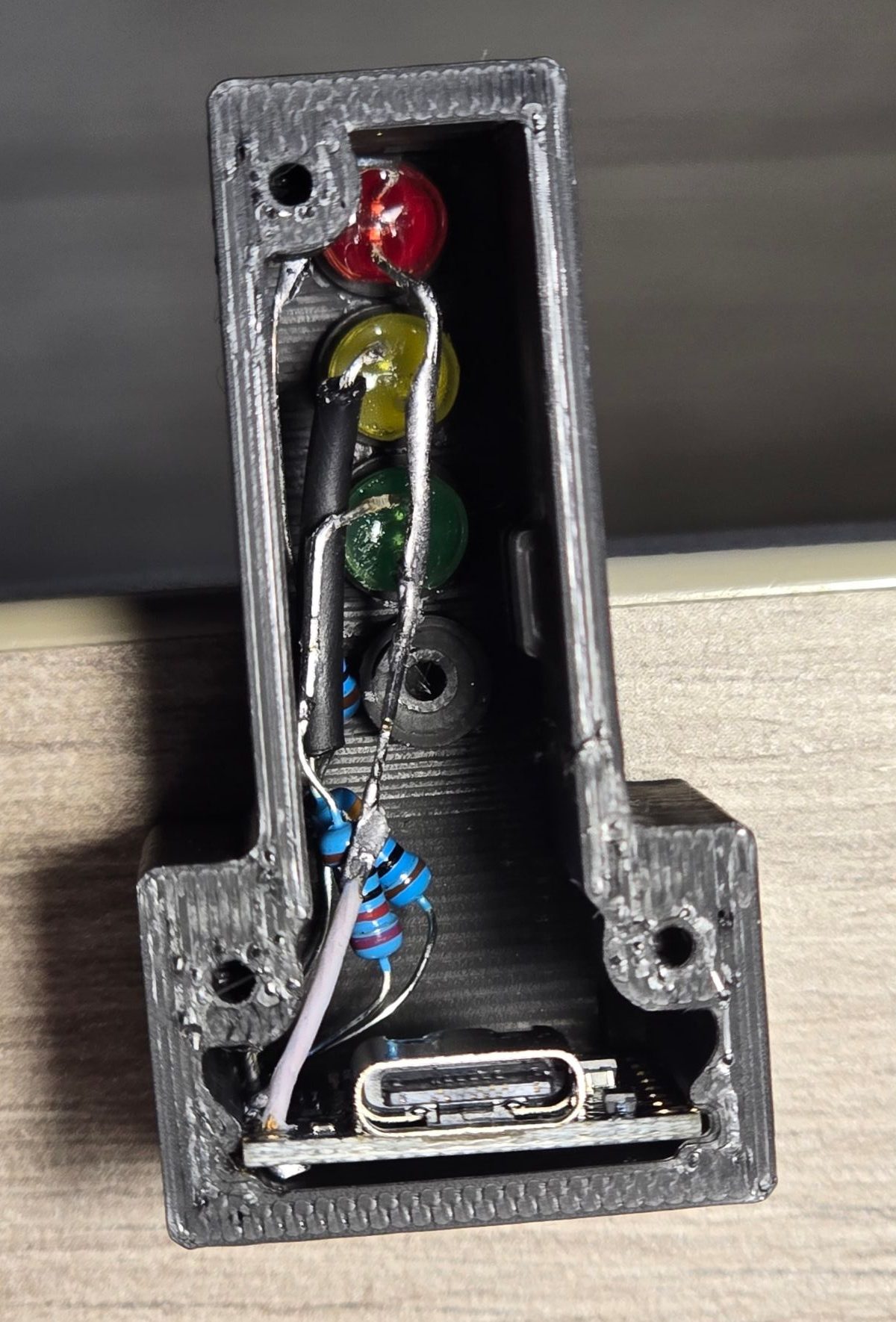
The built lamp from the rear, before the LED retainer goes in: LEDs on top, resistors and the shared GND lead at the board.
| LED | Board pad | Command | Meaning |
|---|---|---|---|
| Red / top | 0 / GPIO0 |
R |
A session needs help |
| Yellow / middle | 1 / GPIO1 |
Y |
A session is paused |
| Green / bottom | 3 / GPIO3 |
G |
A session is working |
| No session color | — | N |
Off while status is fresh, except startup, connection confirmation, brightness preview or Identify |
Pads 0, 1, 3 and G (GND) are on the same edge of the board. With USB-C at the top, that edge reads 5V, G, 3V3, 4, 3, 2, 1, 0 from top to bottom. Leave pad 2 unused. GPIO0, GPIO1 and GPIO3 support PWM and avoid the boot-strapping pins 2, 8 and 9, the USB pins 18 and 19, the BOOT button (9) and the blue LED (8). This lamp does not use the optional 32.768 kHz crystal function of GPIO0 and GPIO1. Espressif pin functions, GPIO reference.
I = (3.3 V − Vf) / R: at Vf = 2.0 V, 330 Ω gives 3.9 mA / 5 mW;
470 Ω gives 2.8 mA and 220 Ω gives 5.9 mA. Actual brightness depends on the LED's
forward voltage. For different LEDs, start at 330 Ω each and adjust within their
current ratings. Never omit a resistor.
Build and identify the board
Install uv. It provides the
PlatformIO Core, esptool and pyserial versions locked in uv.lock. Rust tools and the
broglow command install into ~/.cargo/bin/.
# Start in the BroGlow source checkout.
export PATH="$HOME/.cargo/bin:$PATH"

# Build only; neither command accesses the board.
uv run --frozen flash --build-only
cargo build --locked

# List USB serial devices; this does not identify the exact board model.
uv run --frozen platformio device list
Before any upload or serial command, physically identify the ESP32-C3 SuperMini.
Compare the port list before and after plugging it in with a data cable, and
disconnect similar boards if needed. Espressif's USB VID 0x303A is shared by many
chips, so never choose a port by VID, by an example name or by list order. Stop if no
matching board appears. Replace this placeholder with the identified port:
BOARD_PORT='/dev/cu.REPLACE_WITH_IDENTIFIED_BOARD'
The esp32-c3-devkitm-1 build profile specifies the C3 chip, 4 MB flash,
DIO / 40 MHz and native USB; it does not describe the SuperMini board layout. After
identifying the board, verify the chip and flash size:
uv run --frozen esptool --chip esp32c3 --port "$BOARD_PORT" chip-id
uv run --frozen esptool --chip esp32c3 --port "$BOARD_PORT" flash-id
These reads briefly reset the board into its bootloader, then restart it. Require ESP32-C3 / 4 MB and resolve any mismatch before uploading. PlatformIO profile.
Flash and recover USB upload
Flash only a board that lacks working BroGlow firmware. The standard command is the same in a source checkout and in an extracted Mac package:
uv run --frozen flash
The command accepts only one unambiguous USB serial board, verifies an ESP32-C3 with
exactly 4 MB flash, asks before writing, and after the reset requires an exact BroGlow
INFO response. Options:
--port "$BOARD_PORT"selects the identified port, for example when several boards are attached.--backupfirst reads all 4 MB into a private file in.recovery/, prints its SHA-256 and warns that it may contain Bluetooth keys. Without it, no backup is made.--skip-infoskips only the check of the firmware currently on the board.--yesskips the confirmation prompt; it also requires--port.
Before the first serial access the command pauses installed lamp control and waits
three seconds for the lamp worker to stop. After verification, cancellation or failure
it re-enables lamp control (broglow ble on) if it was enabled before; a disabled lamp
stays disabled. It finds ~/.cargo/bin/broglow even when that folder is not on PATH.
In a source checkout the command builds and uploads with PlatformIO. In a package it
validates flash-manifest.json and the four included images, then writes them with
esptool. It never erases the whole flash and never writes firmware.bin at address
zero.
For an advanced manual upload from source, identify the board first. If BroGlow is installed, disable lamp control:
broglow ble off
Wait three seconds, close any broglow led session and serial monitors, then upload:
uv run --frozen platformio run -d firmware/esp32-c3-supermini \
  -t upload --upload-port "$BOARD_PORT"
If the connection fails, hold BOOT, press and release RESET, then release
BOOT. List the ports again, update BOARD_PORT and retry. Press RESET if the
firmware does not start afterwards, and check that the cable carries data.
Espressif flashing instructions.
After a successful upload, re-enable lamp control with broglow ble on.
Build outputs are in firmware/esp32-c3-supermini/.pio/build/esp32-c3-supermini/.
PlatformIO writes the bootloader, partition table and application at their proper
offsets. Never write the application-only firmware.bin at zero. Firmware is
updated only over USB, with this upload or the prebuilt esptool procedure below;
there is no serial or Bluetooth updater in the firmware.
Rebuild after changing LED_RED_PIN, LED_YELLOW_PIN, LED_GREEN_PIN or
STATUS_TIMEOUT_MS in platformio.ini.
For onboard LED options, see indications.
Flash prebuilt C3 firmware
Skip this for a lamp with working firmware. The Mac package contains four images and
firmware/esp32-c3-supermini/flash-manifest.json, so no firmware compiler is needed.
After verifying the package checksums, run uv run --frozen flash from the package
folder.
The manual esptool procedure below is for advanced recovery. First
identify the board. Set PACKAGE_DIR to the extracted
package folder from Install a prebuilt package; uv
provides the locked esptool and pyserial there:
PACKAGE_DIR="$HOME/Downloads/broglow-vVERSION-aarch64-apple-darwin"  # your package folder
cd "$PACKAGE_DIR"
uv run --frozen python -m serial.tools.list_ports -v
# Set BOARD_PORT to the physically identified port, not an example from this guide.
uv run --frozen esptool --chip esp32c3 --port "$BOARD_PORT" chip-id
uv run --frozen esptool --chip esp32c3 --port "$BOARD_PORT" flash-id
Require ESP32-C3 / 4 MB. Disable lamp control with broglow ble off, wait three
seconds and close serial clients. To make an optional full backup by hand:
RECOVERY_ROOT="$PACKAGE_DIR/.recovery"
mkdir -p -m 700 "$RECOVERY_ROOT"
chmod 700 "$RECOVERY_ROOT"
FLASH_BACKUP="$RECOVERY_ROOT/c3-before-flash-$(date +%Y%m%d-%H%M%S).bin"
(umask 077; uv run --frozen esptool --chip esp32c3 --port "$BOARD_PORT" \
  read-flash 0x0 0x400000 "$FLASH_BACKUP")
shasum -a 256 "$FLASH_BACKUP"
Keep the backup private: it may contain Bluetooth keys. Compare the manifest with the offsets below, then flash with the pinned esptool 5.4.0:
FIRMWARE_DIR="$PACKAGE_DIR/firmware/esp32-c3-supermini"
cat "$FIRMWARE_DIR/flash-manifest.json"
uv run --frozen esptool --chip esp32c3 --port "$BOARD_PORT" \
  --baud 460800 write-flash --flash-mode dio --flash-freq 40m --flash-size 4MB \
  0x0 "$FIRMWARE_DIR/bootloader.bin" \
  0x8000 "$FIRMWARE_DIR/partitions.bin" \
  0xe000 "$FIRMWARE_DIR/boot_app0.bin" \
  0x10000 "$FIRMWARE_DIR/firmware.bin"
Require a successful write with hash verification and a running firmware. Then
re-enable lamp control with broglow ble on, or pair over USB
for a new board. These writes keep the NVS area 0x9000..0xe000 (including bonds)
only when the partition layout matches; for unrelated firmware, make a full backup
first. Do not use erase_flash routinely and never write the application image at
zero. If the upload does not connect, use the BOOT/RESET recovery above.
Full-flash recovery image
A full-flash dump contains firmware and Bluetooth keys. Keep it private, together with
its checksum and the board identity, and never share it or restore another board's
dump. A complete 4 MB dump starts at address zero, unlike the application-only
firmware.bin. Restoring replaces the firmware and bonds. Stop serial clients and
restore only to the board it came from:
uv run --frozen esptool --chip esp32c3 --port "$BOARD_PORT" \
  write-flash 0x0 "$FLASH_BACKUP"
Standalone LED test firmware
Build led-test to check the wiring without Bluetooth, session state or PWM. It
lights red GPIO0, yellow GPIO1, green GPIO3 in turn at full digital level, one
second each; the onboard blue LED flashes for 100 ms at each change. Keep one resistor
per LED and the shared cathode GND. The package includes the test sources but no
prebuilt test image.
Identify the board and port again, verify C3 / 4 MB, close serial monitors and run from the source checkout:
broglow ble off
# Wait for the existing lamp worker to release the device.
sleep 3
uv run --frozen platformio run -d firmware/esp32-c3-supermini -e led-test
uv run --frozen platformio run -d firmware/esp32-c3-supermini -e led-test \
  -t upload --upload-port "$BOARD_PORT"
uv run --frozen platformio device monitor --port "$BOARD_PORT" --baud 115200
Require a verified upload. Compare led-test color=red gpio=0 duration_ms=1000 and
pin_levels red=1 yellow=0 green=0 with the LED that lights; yellow (GPIO1) and green
(GPIO3) follow. Only the named pin should read high. This logic readback does not
measure voltage, current or LED health. If an LED stays dark, disconnect power and
check polarity, resistor, contacts and GND; this test alone cannot tell which part
failed.
The test firmware has no Bluetooth, INFO, pairing, ? command, serial color
commands or startup breathing. Ctrl-C closes the monitor but not the cycle;
power-off stops it and reset restarts it. Leave the board in test mode until the user
asks for normal operation. Then close the monitor, identify the port again and restore
the production firmware:
uv run --frozen platformio run -d firmware/esp32-c3-supermini \
  -e esp32-c3-supermini -t upload --upload-port "$BOARD_PORT"
The upload keeps the board's bonds, so for the same board re-enable lamp control with
broglow ble on. A new or replacement board needs USB pairing;
keep existing lamp IDs unless the user asks to forget them. The images are under
.pio/build/led-test/ and .pio/build/esp32-c3-supermini/ in the firmware folder.
Check the wiring before connecting BroGlow
This check needs the production firmware, an identified BOARD_PORT, disabled
lamp control and closed serial monitors. Bluetooth must be disconnected, because a
connected Bluetooth client controls the LEDs. Run it with uv from the source checkout
or the package folder:
uv run --frozen python - "$BOARD_PORT" <<'PY'
import sys
import time
import re
import serial

with serial.Serial(sys.argv[1], 115200, timeout=0.5, write_timeout=2) as port:
    port.rts = False
    port.dtr = True
    time.sleep(0.3)
    port.reset_input_buffer()

    def request(command, prefix):
        port.write(command)
        port.flush()
        until = time.monotonic() + 3
        while time.monotonic() < until:
            reply = port.readline().decode(errors="replace").strip()
            if reply.startswith(prefix):
                return reply
        raise RuntimeError("No firmware response; recheck the identified port")

    identity = request(b"INFO\n", "broglow_pair ")
    if not re.fullmatch(r"broglow_pair identity=[0-9a-f]{12} service=7d2ea28a-f7bd-485a-bd9d-92ad6ecfe93e", identity):
        raise RuntimeError("Unexpected firmware identity; stop and identify the board")
    print(identity, flush=True)
    diagnostic = request(b"?\n", "state=")
    if " connected=0 " not in f" {diagnostic} ":
        raise RuntimeError("BLE still owns the lamp; disable it before this test")
    try:
        time.sleep(3)  # Let any startup breathing finish.
        for _ in range(10):
            for command, label in [(b"R\n", "red"), (b"Y\n", "yellow"), (b"G\n", "green")]:
                print(label, flush=True)
                port.write(command)
                port.flush()
                time.sleep(1)
    finally:
        port.write(b"N\n")
        port.flush()
        print("all off", flush=True)
PY
Expect red, yellow and green to light one at a time for one second each, for ten
cycles, and then all to turn off (N). Interrupting the script also sends N. After
the three-second startup breathing, fresh serial commands override the waiting or
pairing indication. For a dark or faint LED, disconnect power and check polarity, GPIO,
resistor and the shared GND. If all LEDs stay dark, also check the firmware, the port,
the brightness and that Bluetooth is disconnected. Power-cycling with Bluetooth
disabled restores 100% brightness.
Over the serial port the firmware accepts the complete lines R\n, Y\n, G\n and
N\n at 115200 baud, including CRLF endings. Empty, unknown, multi-character and
oversized lines are ignored. To test expiry, send one R\n and nothing else for ten
seconds, then send ?: it must report state=N. The last lit status color fades
to black over 700 ms (mode=fading), then the disconnected pairing or waiting
indication resumes. The state, age_ms and mode fields tell these
indications apart from a stale session color.
Local recovery files
Keep snapshots and private hardware evidence in .recovery/ at the root of the source
checkout or package, with mode 0700. Git and public packages exclude this folder.
Firmware dumps may contain Bluetooth keys. Take one snapshot before changing an
installation, reuse it for retries and keep it until verification is complete. Builds
and documentation changes need no snapshot. Do not overwrite unknown firmware unless
the owner has said the board may lose its data. Recovery files are not needed to build,
install or run a release.
Install or update the Mac service
Run everything as the logged-in Mac user, without sudo. First inspect the current installation; on a fresh Mac it is normal that the command and service are missing:
command -v broglow
launchctl print "gui/$(id -u)/io.github.broglow.menubar"
pgrep -fl 'broglow.*menubar'
Before changes, run this from the source or package folder to snapshot the settings,
hooks, CLI and service. If you delete the package later, keep .recovery/ until you no
longer need a rollback:
RECOVERY_ROOT="$PWD/.recovery"
mkdir -p -m 700 "$RECOVERY_ROOT"
chmod 700 "$RECOVERY_ROOT"
BACKUP_DIR="$RECOVERY_ROOT/install-$(date +%Y%m%d-%H%M%S)"
mkdir -m 700 "$BACKUP_DIR"
for item in \
  "$HOME/.claude/settings.json" \
  "$HOME/.claude/broglow/config.json" \
  "$HOME/.cargo/bin/broglow" \
  "${CODEX_HOME:-$HOME/.codex}/hooks.json" \
  "$HOME/.config/opencode/plugins/broglow.js" \
  "${COPILOT_HOME:-$HOME/.copilot}/hooks/broglow.json" \
  "$HOME/Library/LaunchAgents/io.github.broglow.menubar.plist"
do
  if [ -f "$item" ]; then
    mkdir -p "$BACKUP_DIR$(dirname "$item")"
    cp -p "$item" "$BACKUP_DIR$item"
  fi
done
if [ -d "$HOME/Applications/BroGlow.app" ]; then
  cp -R "$HOME/Applications/BroGlow.app" "$BACKUP_DIR/BroGlow.app"
fi
Both installation routes place the CLI at ~/.cargo/bin/broglow, so hooks keep working
after the package folder is deleted; the prebuilt route does not need Cargo.
broglow install installs or updates the app, the hooks and the login service, and
keeps unrelated hook entries. It never writes Codex config.toml; Codex hook trust is
up to the user (Codex rules). Restart running opencode
sessions so they load the new plugin. If PATH finds another broglow, run
~/.cargo/bin/broglow install explicitly.
The service io.github.broglow.menubar, registered in
~/Library/LaunchAgents/io.github.broglow.menubar.plist, runs:
~/Applications/BroGlow.app/Contents/MacOS/broglow menubar
Update this service instead of starting a second cargo run -- menubar. Locks prevent
a second tray instance and stop discovery and the lamp worker from using Bluetooth at
the same time. When restoring from a snapshot, restore only the affected BroGlow
settings and keep unrelated changes.
Install a prebuilt package
Download the full Mac package and its .tar.gz.sha256 file: aarch64-apple-darwin for
Apple Silicon or x86_64-apple-darwin for Intel. The Windows archives (tray app and
CLI) do not contain the Mac app or the C3 firmware. Installing the app needs no Rust,
Cargo, Node.js or PlatformIO.
# Replace with the actual archive path.
PACKAGE_ARCHIVE='/path/to/broglow-vVERSION-aarch64-apple-darwin.tar.gz'
cd "$(dirname "$PACKAGE_ARCHIVE")"
shasum -a 256 -c "$(basename "$PACKAGE_ARCHIVE").sha256"
mkdir -p "$HOME/Downloads"
tar -xzf "$PACKAGE_ARCHIVE" -C "$HOME/Downloads"
PACKAGE_DIR="$HOME/Downloads/$(basename "$PACKAGE_ARCHIVE" .tar.gz)"
cd "$PACKAGE_DIR"
shasum -a 256 -c SHA256SUMS
uname -m
file bin/broglow
cat BUILD.json
./bin/broglow --version
./bin/broglow ble pair --help
Require matching checksums and architecture, the expected version and a working
ble pair --help. BUILD.json records the minimum macOS version and the source
revision. Checksums prove integrity, not who published the package, so download only
from a trusted source. BroGlow packages, including releases, are not notarized with an
Apple Developer ID. If macOS blocks the app, verify the source, then use
Open Anyway for this app only; never disable
Gatekeeper globally. After the snapshot, install:
mkdir -p "$HOME/.cargo/bin"
install -m 755 "$PACKAGE_DIR/bin/broglow" "$HOME/.cargo/bin/broglow"
cmp "$PACKAGE_DIR/bin/broglow" "$HOME/.cargo/bin/broglow"
"$HOME/.cargo/bin/broglow" install
export PATH="$HOME/.cargo/bin:$PATH"
The installer signs the app bundle locally. Then finish the PATH setup, the service validation and USB pairing. Only new or unflashed boards need the included C3 images.
Build from source
Use a complete source checkout with Cargo.lock, src/ble.rs and
firmware/esp32-c3-supermini/platformio.ini; the Mac package is not a source
distribution. Keep local changes. Identify a build by its source revision or
BUILD.json, not by the version number alone.
You need the Apple command-line tools (xcode-select --install),
Rust stable and
uv. Development setup and
the full list of checks are in
CONTRIBUTING.md.
First builds download the pinned dependencies. After the
snapshot, build and install:
export PATH="$HOME/.cargo/bin:$PATH"
cargo install --path . --locked
"$HOME/.cargo/bin/broglow" install
Run both commands after every application change: compiling alone leaves the old service running. Firmware changes reach a board only through an explicit upload. Then finish the service validation, the PATH check and, if requested, lamp setup.
Run broglow from any directory (PATH)
The package and source routes put the CLI at ~/.cargo/bin/broglow; Homebrew puts it
in $(brew --prefix)/bin/broglow, which is already on PATH. Source files are needed
only to rebuild. Check PATH from outside the source or package folder:
cd /tmp
command -v broglow
type -a broglow
broglow --help
The first path should be your ~/.cargo/bin/broglow (or Homebrew's bin/broglow).
If the package or source install is missing or another copy comes first, add this line once to ~/.zshrc, open a new terminal and check again:
export PATH="$HOME/.cargo/bin:$PATH"
If Rust's ~/.cargo/env already sets PATH, change nothing. Keep your other shell
settings; other shells use their own startup files. An export typed in one terminal
does not affect future terminals. broglow install registers the hooks and the
service, not PATH. Scripts and scheduled jobs may skip shell startup files, so call
"$HOME/.cargo/bin/broglow" there. The LaunchAgent already uses the app's absolute path.
Menu bar icon and service validation
After installation, press ⌘ Space, search BroGlow and press Return. The
traffic-light icon opens the session controls, also when BroGlow is already running.
You can also open ~/Applications/BroGlow.app in Finder or run:
open "$HOME/Applications/BroGlow.app"
BroGlow starts at login and stays in the menu bar. The Terminal command broglow
opens the optional TUI dashboard.
Find the traffic-light icon at the right of the macOS menu bar (tooltip: BroGlow). There is no Dock icon or window. A left click opens the session list. The footer button (Lamp, Lamps 1/2 or Lamp off) opens Lamps, which shows the transport and the status of each lamp. Expand a lamp's row for its controls; open Connection details for its ID and diagnostics.
On macOS and Windows, reopening the popover after it has been closed for 5 minutes
returns to the main chat list. Settings → Appearance → Return to chats after
is checked by default; clear it to keep the current page indefinitely, or set
the inline min field to a whole number in 1–1440. Shorter closures keep the current page;
time spent with the popover open does not count, and sleep while it is closed does.
This saves popover_reset_enabled and popover_reset_minutes. Returning to chats
preserves lamp settings and any background setup.
Dashboard shortcuts are hidden by default. Turn on Settings → Appearance → Show Dashboard button, or run:
broglow dashboard-button show
broglow dashboard-button hide
This saves show_dashboard_button and applies immediately. While the shortcuts are
hidden, BroGlow also does not fall back to Terminal when it cannot focus a session.
Running broglow directly still opens the TUI, and Quit stays in the right-click
menu.
Under each session title, an icon and a name show the session's agent (Claude, Codex,
opencode or Copilot) before the project. A second glyph shows where it runs: a window
for the agent's desktop app, >_ for a terminal, </> for an IDE. Hover it for the
exact host, such as Claude app, Ghostty or VS Code. Turn off Settings →
Appearance → Show agent names to keep only the icon; hover it to see the name. This
saves show_agent_names. The TUI follows the same setting in its AGENT column, showing
the name or a short tag (cc Claude, cx Codex, oc opencode, co Copilot), and
names the host in its HOST column (app for the agent's desktop app). The Linux tray
menu shows the tag instead of the icon.
The project is the working directory the agent reported, shown by its folder name;
when two shown folders share a name, parent folders are added (arcadia/recco and
arcadia-wt/recco), and a session without a known directory says No project.
Turn on Settings → Appearance → Group by project to list sessions under a heading
per directory instead of under Needs help, Working and Paused: the full path
shows on hover, each row names its status after the agent, projects with a session
needing help come first, and Clear paused moves to the By project heading. This
saves group_by_project, off by default. The TUI then sorts its rows the same way and
brightens the project name on the first row of each project, and the Linux tray menu
adds a 📁 heading per project. On Linux, where there is no Settings view, set
"group_by_project": true in ~/.claude/broglow/config.json.
| Icon | Session state |
|---|---|
 Gray Gray |
No live sessions |
 Green Green |
Sessions are Working; see Settings → Mixed sessions |
 Yellow Yellow |
A session is Paused; see Settings → Mixed sessions |
 Red Red |
A session Needs help |
The icon color does not show service or Bluetooth health. Usage tracking in Settings is off by default. If the icon is hidden, show the menu bar, leave full-screen mode or expand your menu-bar manager. Apple menu-bar help.
Validate the service:
launchctl print "gui/$(id -u)/io.github.broglow.menubar"
ps -axo pid=,command= | awk '$2 ~ /(^|\/)broglow$/ && $3 == "menubar" {print}'
/usr/bin/plutil -lint "$HOME/Applications/BroGlow.app/Contents/Info.plist"
/usr/bin/codesign --verify --strict "$HOME/Applications/BroGlow.app"
"$HOME/.cargo/bin/broglow" ble status
Require state = running from launchctl and exactly one broglow menubar process,
started from ~/Applications/BroGlow.app/Contents/MacOS/broglow with the same PID
that launchctl reports. The plist and signature checks confirm registration and
integrity, not Bluetooth permission. Signing changes the app's executable, so do not
compare its hash with the CLI. ble status reports recent lamp writes: disabled
before lamp setup is normal, and so is connected: 1/2 lamps connected when one of two
lamps is elsewhere. Whether the LEDs actually light still needs a visual check.
If the service is loaded but not running:
launchctl kickstart -k "gui/$(id -u)/io.github.broglow.menubar"
Repeat the checks. If the app or the service registration is missing, repeat your
installation route. After unexpected exits, read ~/.claude/broglow/menubar.log and
menubar.err. Never start another tray instance as a health check. The first TUI
launch on an unconfigured Mac can install the hooks and login startup.
Connect local Codex sessions
Codex setup for users is in Connect Codex. When an agent sets up BroGlow, these rules apply:
- Installing BroGlow adds
codex-hookentries to$CODEX_HOME/hooks.json(normally~/.codex/hooks.json). The user must review and trust them in Codex/hooks; never fabricate trust hashes or bypass trust. - Never write Codex
config.toml. Keep other hooks in place and in their order. - If Codex was installed after BroGlow, run
broglow installagain (missing hooks). broglow ble statusand manual test events do not prove that Codex hooks work. Only a real local Codex task that shows Working, then Paused in BroGlow's session list does.
Bluetooth identity and permission
Turn on Bluetooth and allow BroGlow in System Settings → Privacy & Security →
Bluetooth. The installed app bundle provides NSBluetoothAlwaysUsageDescription and
the stable ID io.github.broglow.menubar; a LaunchAgent plist alone cannot.
broglow ble scan and broglow ble pair re-run themselves from that bundle so they
share its Bluetooth permission.
Local installs are ad-hoc signed with an identifier-only designated requirement. The permission survives rebuilds, but the signature does not authenticate a publisher.
Neither a signature check nor a scan permitted in Terminal proves that the background service has permission. Verify a write from the installed service while the lamp runs on a USB power adapter, then verify it again after a service restart or login, and after recovering from a denied permission.
btleplug permissions, Apple usage description, signing and TCC, designated requirements.
Pair and remember lamps
Lamps advertise as BroGlow C3 plus a four-digit hexadecimal board suffix. The Mac
saves each lamp's CoreBluetooth UUID. A lamp accepts one Mac at a time; one Mac can
update several lamps at once.
USB-assisted setup
Connect one flashed board with a USB data cable and close serial monitors. The macOS app starts setup automatically within five seconds, also when the board was attached before the app started. To retry by hand, select Lamps → Add lamp or run:
broglow ble pair
broglow ble status
Keep the board attached while Adding… is shown, and approve the macOS pairing prompt promptly. Setup identifies the firmware, opens pairing and saves the matching Bluetooth ID. Connected appears only after the lamp worker's first encrypted write succeeds. After that, USB is needed only for power, from the Mac or a USB adapter; control stays on Bluetooth. With several boards attached, pass the identified port:
broglow ble pair --port "$BOARD_PORT"
Setup requires an exact INFO identity, the BroGlow service UUID and the board's full
six-byte base MAC in the manufacturer data (0xffff). A name or USB VID alone never
selects a lamp. Automatic USB detection accepts native Espressif 303A:1001 devices,
merges each board's tty and cu ports and needs exactly one candidate. If the choice
is ambiguous, settings and Bluetooth stay unchanged, and a second concurrent setup is
rejected. Only a verified BroGlow INFO reply allows PAIR; the app never flashes
firmware on its own.
Automatic setup tries each USB attachment once. If it fails, the previous lamp settings
return; select Add lamp, or unplug for at least five seconds and reconnect.
Verified USB identities are saved in usb_lamps; saved lamps keep their transport and
enabled setting. Replugging a forgotten lamp this way adds it again unless
Settings → Lamps → Automatically add forgotten lamps over USB is off; turn it off
if you connect lamps only for power. Add lamp and broglow ble pair work either
way. Forget takes effect immediately while attached. Restarting the app does not
re-add a forgotten lamp, and a disabled saved lamp stays disabled. Progress and errors
appear under Lamps. Automatic Bluetooth setup is macOS-only.
Setup first reads INFO at 115200 baud; a saved board already in usb_lamps
ends automatic setup there, so replugging a saved lamp leaves the other lamps
connected. While Bluetooth lamps are enabled, a new lamp is found without a pause:
BroGlow sends PAIR and, for eight seconds, the running lamp worker reports BroGlow
advertisements (ble-sightings.json, written only while setup asks). Exactly one
advertisement seen after PAIR with the same six-byte identity is saved, and the
worker connects it while the other lamps stay connected. If the worker does not answer
within three seconds or sees no matching lamp, and always when lamps are disabled,
mirrored over USB or the lamp is connected to this Mac (a connected lamp stops
advertising), BroGlow pauses lamp control and waits up to eight seconds for the
worker to stop, sends PAIR, releases the serial port and scans for eight seconds.
While lamps are mirrored over USB, the worker holds the port, so the pause comes before
INFO. A busy port causes an error; BroGlow does
not take it over. On failure, the previous lamp settings return while unrelated
settings changed in the meantime are kept. Closing the popover does not stop setup or
recovery. USB-assisted setup also uses Just Works pairing and needs macOS consent.
Repeat for each lamp: new IDs are added and existing bonds kept. If the board does not
answer INFO, flash it with prebuilt or
source firmware, after identifying it and only if the
user agreed.
Pair without a USB data cable
BOOT is GPIO9, active LOW. Use it after a normal startup, and release it once before holding it. Holding BOOT during power-on or RESET enters the ROM bootloader instead.
| Action after normal startup | Result |
|---|---|
| No saved bonds | Pairing window opens automatically for 60 seconds |
| Hold BOOT three seconds, release | 60-second pairing window; bonds kept |
| Keep holding to ten seconds, release | Request to delete all bonds on the board, disconnect, 60-second window |
USB broglow ble pair |
Same window after identification; bonds kept |
| Window expires | New pairing rejected; bonded Macs can still reconnect |
LE Secure Connections Just Works encrypts GATT writes and stores persistent bonds, but it has no MITM protection, PIN or numeric comparison. Pair only the intended lamp during its physical window. The saved UUID selects the lamp; the keys stored on the board and in macOS form the bond. Espressif security API.
Power the lamp from a USB adapter. Free the lamp worker and the radio before scanning:
broglow ble off
# Wait at least three seconds, then open pairing with BOOT as described above.
broglow ble scan
The scan lasts eight seconds. Power only the intended lamp, or compare scans with the lamp off and on. Copy its CoreBluetooth UUID exactly (it is specific to this Mac) and replace the placeholder:
broglow ble add <HOME_ID_FROM_SCAN>
broglow ble status
broglow ble list
add enables all remembered lamps. Approve Bluetooth access and the macOS pairing
prompt promptly: the prompt was observed to time out after about 30 seconds, even
though the board's window and the Mac's write timeout are 60 seconds. If it
expires, open the window again and retry. The first encrypted write sets the lamp's
saved brightness, and this is the write that can trigger the pairing prompt. The
worker then sends the current status. The first status write of each connection
produces a 250 ms confirmation flash. An advertisement or a low-level connection
is not an acknowledged write.
For an office lamp, repeat: broglow ble off, wait three seconds, BOOT, broglow ble
scan, broglow ble add. Both IDs stay saved. Lamps 1/2 is normal while one lamp is
elsewhere; expect Lamps 2/2 with both nearby. Each lamp has its own writes and
expiry, so one lamp cannot block or mask the other.
~/.claude/broglow/config.json stores ble_peripherals and led_transport: "ble".
To forget a lamp, use Lamps → lamp row → Forget lamp, or:
broglow ble remove <ID_TO_FORGET>
Forget works while the lamp is absent or disabled. It saves the settings before removing
the row and keeps the list intact if saving fails. It disconnects only that lamp; the
other lamps stay connected. It stops reconnecting but erases no bonds on either side.
Removing the last ID disables Bluetooth. broglow ble off keeps the IDs, and
broglow ble usb keeps them while switching to USB. To add a forgotten lamp again,
replug its USB cable with the setting on, select Add lamp, run broglow ble pair,
or add its scanned ID.
Replace a Mac or recover mismatched bonds
Disable the lamp worker on the old Mac. Install BroGlow on the new Mac, open the board's pairing window by holding BOOT for three seconds, then scan and add its ID. CoreBluetooth UUIDs differ between Macs, so do not copy the old Mac's ID.
If bonding keeps failing, hold BOOT for ten seconds after startup to clear the
board's bonds. If macOS lists a stale entry for the lamp in Bluetooth settings, forget
or remove it too, then scan and add the lamp during the new window. broglow ble remove
changes only BroGlow's settings, not the macOS keys. Confirm recovery by a successful
write and by the authenticated and bonds diagnostics. Erasing is asynchronous:
bond_reset=requested does not mean it has finished.
Pairing feedback and diagnostics without external LEDs
At startup all controlled LEDs breathe twice. During pairing the three colors chase; an unpaired lamp blinks; a bonded lamp without a connection stays dark once the disconnect fade has finished and the pairing window is closed. The first status write of each connection produces one short confirmation flash, and then the fresh session status takes over. The onboard LED shows green, yellow and red with one, two and three pulses.
A confirmed Bluetooth disconnect immediately fades the displayed status color and
brightness to black over three seconds. Reconnection alone keeps the fade going
or leaves the lamp dark. A fresh valid status restores the latest color at the
configured brightness, without a connection flash, even after the fade has finished;
N means off. If Bluetooth stays connected but valid updates stop, the lamp holds
its current color for five seconds, then fades for five seconds, reaching
black at the ten-second deadline. A returning valid status restores the
configured brightness; the fade does not change the saved brightness setting.
Both fades start from the current light level, capped at the configured brightness,
without a jump to maximum brightness.
Sending ? over the identified USB serial port reports the state, the PWM duties,
pairing and bonds, and the time since the last accepted status (age_ms). These are
commanded outputs, not proof of visible light. Pattern timing, INFO, PAIR and the
diagnostic commands are described in the
firmware reference.
Everyday operation and status
Turn the selected transport on or off with TUI l or Lamps → Enable/Disable lamp.
Enabling USB needs an attached board; Bluetooth enables all saved lamps without USB.
From the command line, broglow ble off disables lamp control and keeps the IDs, and
broglow ble on enables the selected transport again.
In Lamps, expand a row (click, or Enter or Space) for its controls, Name and
Forget lamp; open Connection details for Device ID and Diagnostic.
Click Save or press Enter in the name field: Saving… is followed by a green
Name saved. confirmation after BroGlow saves the preference, and the input loses
focus. Editing again clears the confirmation. A failed save shows an error and keeps
your draft for retrying.
Names can have up to 40 Unicode characters. On the next active Bluetooth
connection, the name is also saved on the lamp: Home becomes
BroGlow Home in Bluetooth settings and survives a power cycle. The Bluetooth
name uses at most 21 UTF-8 bytes of the label, keeping whole characters;
BroGlow retains the full label on the Mac. An empty name restores Lamp 1, Lamp 2
and so on in BroGlow and the factory BroGlow C3 … Bluetooth name. Names can be
saved while a lamp is absent or disabled and are sent when it reconnects. macOS may
show the cached Bluetooth name until reconnection. Pairing keys and device IDs stay
the same.
From the command line: broglow ble rename <SAVED_ID> "Office" ("" clears the name).
Troubleshooting shows service and setup details; Back or Escape returns to the
sessions. In the TUI, d toggles details, arrows or j/k scroll and Escape returns.
Identify runs only on the selected Bluetooth lamp while it is connected. It lights red → yellow → green one LED at a time at 100%, 100 ms per LED, three times (0.9 seconds in total), then restores the latest status and the saved brightness, even if that is 0%. It does not enable a lamp or save settings. A lamp that is absent, paused or has stale status cannot be identified.
| Status | Meaning and action |
|---|---|
disabled |
Enable it in the TUI or in Lamps |
searching |
Check the remembered IDs and the lamp's power |
connecting |
Connection or service discovery in progress |
connected |
At least one lamp accepted a recent write; check the per-lamp count and status |
error |
Read the detail: permission, Bluetooth, timeout or GATT |
unavailable |
The worker's status is missing or stale; check the installed service |
The green connection dot needs an accepted write; an advertisement or USB presence is not enough.
Red wins whenever any session needs help. Settings → Mixed sessions decides mixed
states: Yellow when any session is idle (any_inactive, the default) or Green
while any session is working (active_wins). With no live sessions the lamp gets a
fresh N and stays dark after the connection flash. Changing this setting needs no
reconnect.
Each lamp receives the current status when it connects, whenever the status changes,
and every two seconds. Reconnecting never replays an old queued color. Disabling
tries to send N, then disconnects and stops scans and retries. If N was not
delivered, the lamp fades out.
After the disconnect fade, a bonded lamp stays dark while waiting for a connection,
whether the Mac is absent or lamp control is disabled, unless pairing is opened.
Brightness control
In Lamps, expand a lamp and set Light brightness: 0–100%. All lamps sets
every saved lamp, clears per-lamp overrides and becomes the default for new lamps.
The default is 100%. The Mac stores led_brightness
and optional per-ID lamp_brightness values in ~/.claude/broglow/config.json. An
absent lamp receives its saved value when it reconnects.
Moving a slider previews all three lights on the selected connected lamps; status returns two seconds after the last preview. Holding the pointer keeps the preview going, and keyboard changes also preview. Releasing or cancelling, leaving Lamps or closing the popover stops the preview. Only a committed change is saved; closing or cancelling alone saves nothing. A preview never enables a lamp or writes settings. Saved changes work while a lamp is absent or disabled. Forget removes that lamp's name and brightness override.
broglow ble brightness 40 --id YOUR-SAVED-UUID  # one remembered lamp
broglow ble brightness 60                     # all lamps; clear overrides
These commands only save the setting; they do not enable a lamp or preview. Connected lamps receive changes without reconnecting. Brightness scales the external LEDs and the onboard blue LED, including indications, but not blink timing or the red power LED. At 0% the Bluetooth connection and status updates keep running while the controlled LEDs stay off; a preview can temporarily show another level. PWM is not calibrated to perceived brightness, and eight-bit rounding merges very low levels.
The board keeps brightness in RAM and returns to 100% after power-off or reset. The Mac sends the saved value before the first status and connection flash, so earlier startup indications use 100%. Brightness, preview and Identify do not extend the ten-second status deadline, and brightness changes do not restart patterns. A disconnect, lost authentication or stale status cancels preview and Identify.
USB serial control does not send brightness: the board keeps its last level until a power cycle returns it to 100%.
Preserve or return to USB
broglow ble usb
This selects USB with lamp control disabled and keeps the existing USB settings and
saved Bluetooth IDs. Connect the identified board, then enable it with l or in
Lamps. With several Espressif devices attached, set led_port in
~/.claude/broglow/config.json to the board's current identified path and keep the
other keys; the VID alone is not enough.
For a USB-only diagnostic in the foreground:
broglow ble off
broglow led --port "$BOARD_PORT"
Stop it with Ctrl-C before enabling the tray's lamp control again. While Bluetooth is connected, the board ignores serial color commands; read-only diagnostics still work.
BLE contract and firmware behavior
Bluetooth uses acknowledged encrypted writes and resends the status every two seconds. Firmware updates go over USB. UUIDs, payloads, security and diagnostics are defined in the firmware reference.
Troubleshooting and service recovery
| Symptom | Check and recovery |
|---|---|
| No port, or upload fails | Use a data cable, confirm a C3 with 4 MB flash, close serial clients, try BOOT/RESET and list the ports again. Never guess the port. |
Run broglow install, or the wrong CLI runs |
Run ~/.cargo/bin/broglow install; check PATH and the app bundle. |
| Bluetooth busy | Run broglow ble off, wait three seconds, close other scans and retry. |
| Permission error, or Bluetooth off | Turn on Bluetooth, allow BroGlow in Privacy & Security → Bluetooth and restart the service. |
No lamps, or searching repeats |
Check power, firmware, range and the saved ID. A connected lamp may stop advertising, so disable other clients; compare scans with the lamp off and on. |
| Pairing or write rejected | Hold BOOT three seconds after a normal startup, pair within 60 seconds and approve the macOS prompt promptly (about 30 seconds observed). Then try bond recovery. |
| BOOT stops advertising | Release BOOT, press RESET and wait for a normal startup before holding BOOT for pairing. |
1/2 connected |
Normal while one lamp is elsewhere. |
| Missing characteristic | The saved device does not run BroGlow firmware; flash it or add the correct scanned ID. |
| Connected, but dark or wrong color | Check for 0% brightness, live sessions and Settings → Mixed sessions; disable Bluetooth and run the wiring check. An acknowledged write is not electrical proof. |
| Faint LED, or one color dark | Disconnect power; check polarity, GPIO, resistor, contacts and the shared GND. Use the standalone test; its logic readback cannot prove voltage, current or board damage. |
| No local Codex sessions | Trust the BroGlow hooks in Codex /hooks and send a new prompt in a local task. If Codex was installed after BroGlow, run broglow install again (Codex setup). |
| Serial colors ignored | Disconnect Bluetooth. |
| Light fades while the Mac sleeps | Expected; after wake, a fresh status restores the latest color. |
unavailable, or no tray icon |
Check launchd and the logs and recover the existing service; never start a second tray. |
Restart without reinstalling the hooks:
launchctl kickstart -k "gui/$(id -u)/io.github.broglow.menubar"
broglow ble status
Read ~/.claude/broglow/menubar.log and menubar.err. If the app bundle is missing or
broken, or the binary changed, repeat the prebuilt or
source installation with the CLI at ~/.cargo/bin/broglow. The
installer prepares the new app beside the old one and restores the old app if the
swap fails. If an installation was interrupted and
~/Applications/.BroGlow.previous.*.app remains, it holds the previous app; keep it
until BroGlow works again. When restoring from a snapshot, restore only the affected
BroGlow settings and keep later unrelated changes.
broglow uninstall removes the login service, the app, BroGlow's hooks and
~/.claude/broglow (session state, logs and lamp settings, including saved lamp IDs).
It keeps ~/.cargo/bin/broglow. Do not use it for routine troubleshooting. To remove
BroGlow on purpose, run broglow ble off first, then broglow uninstall.