Install and connect
No lamp yet? Install and configure BroGlow now, before building or getting one. The app and terminal dashboard show your local agent sessions and their status without any hardware. Install below and connect your coding agents; pairing and lamp controls can wait until you have a device.
Install with Homebrew
brew install broglow/tap/broglow
broglow install
broglow install is a required step: it registers BroGlow's hooks in your coding
agents (Claude Code always; Codex, opencode and GitHub Copilot CLI when they are
installed), installs the menu-bar app and starts it at login. No Homebrew, or on
Windows or Linux? See Alternative installations.
Open BroGlow
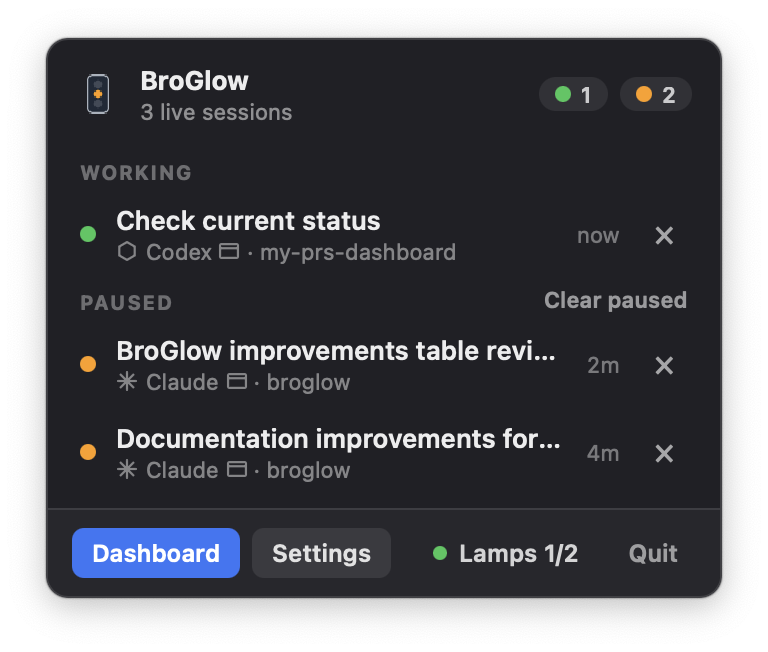
To open the Mac app, press ⌘ Space, search BroGlow and press Return. Its
traffic-light icon in the menu bar opens the session controls.
In Terminal, broglow opens the dashboard.
What the colors mean
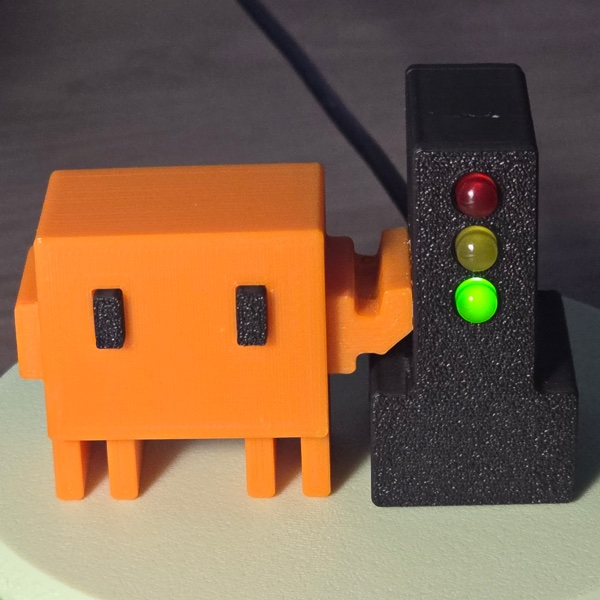
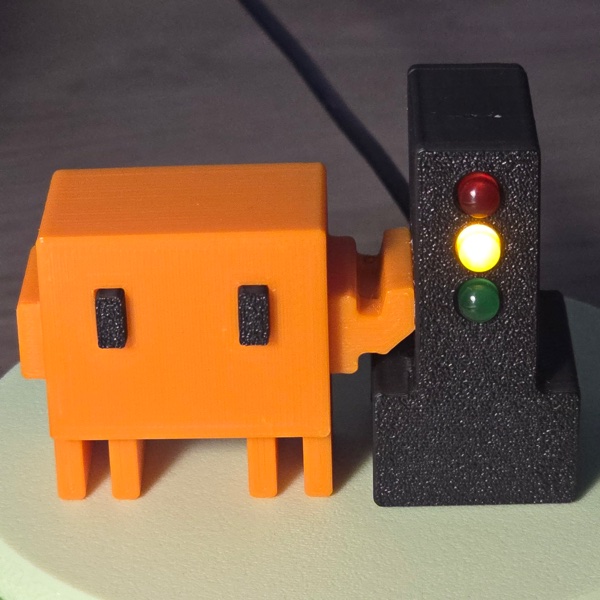
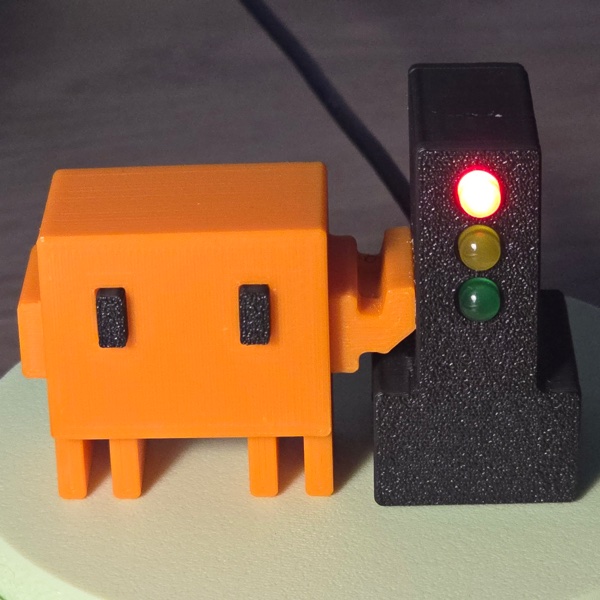
BroGlow shows your local session status: green while an agent is working, yellow when a session has finished its turn and waits for you, red when an agent asks a question or needs a permission. The popover marks each session with these colors even without a lamp. A connected lamp mirrors their combined status; Settings → Mixed sessions decides between green and yellow when sessions disagree.
Pair once, then place it on your desk
Connect one flashed lamp with a USB data cable. On macOS, BroGlow starts setup automatically within five seconds. Allow Bluetooth and approve any macOS pairing prompt. To retry, click the Lamp button in the menu footer (it reads Lamps once you have several) and choose Add lamp. Add lamps one at a time; existing lamps stay saved.
The Terminal alternative is:
broglow ble pair
broglow ble status
Wait for Connected on the intended lamp's row: Lamp added only means saved. Connected confirms a status write, not visible LED operation. Then power the lamp from your Mac or a USB adapter. BroGlow reconnects automatically when the lamp is in range, as long as the app is running and lamp control and Bluetooth are on. To add more lamps, connect them by cable one at a time and repeat these steps. If several boards are connected at once or setup fails, see USB-assisted setup.
Adjust brightness and manage lamps
Open the Lamp button in the menu footer and expand a lamp's row:
- Name: up to 40 characters, saved on this Mac; blank restores the automatic label.
- Identify: lights the connected lamp's red, yellow and green LEDs in turn a few times, then returns to the current status.
- Light brightness: 0–100% for that lamp. All lamps replaces every saved lamp's individual level. Preview ends two seconds after the last change.
- Forget lamp: removes it, with its name and brightness, from this Mac; the Bluetooth bond remains. Forgetting the last lamp also turns lamp control off.
On macOS, unplugging a forgotten lamp's USB cable for at least five seconds and reconnecting it adds the lamp again; turn off Settings → Lamps → Automatically add forgotten lamps over USB (on by default) if you connect lamps only for power. Restarting the app does not add a forgotten lamp again; Add lamp with a USB data cable always works. Saved disabled lamps stay disabled.
At 0%, the controlled LEDs stay dark (the board's red power LED stays on), but Bluetooth stays connected and Identify still works. You can change brightness while a lamp is offline: it applies when the lamp reconnects. If lamp control is turned off, changing brightness does not turn it back on.
The terminal dashboard is optional: show its shortcut under
Settings → Appearance → Show Dashboard button, or run broglow dashboard-button show.
Updating the app does not flash the board: see flashing and recovery.